From photo to animation
Animated kaleidoscope GIF maker
Create a changing kaleidoscope pattern from your photo. The editor turns recent editing steps into GIF frames, so you can animate changes in rotation, crop or color.
Start making a kaleidoscope GIFFree browser tool. No account or installation required.
Photos selected from your device are edited in your browser. Download the GIF when it is ready, or share it using your device's supported apps.
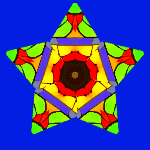
How the GIF maker works
A frame is one image in the animation. Instead of creating movement automatically from a single photo, Kaleidoscope24 uses several states from your editing history. Make a series of changes, then choose how many recent steps to include.
For a rotation experiment, keep the same image and form while changing rotation in small increments. For a changing mandala, move the crop between edits. A series of color adjustments creates a different effect again. Mixing unrelated edits can make the animation jump abruptly.
How to create an animated kaleidoscope GIF
Choose a photo and build a pattern
Open the generator, use New 🖼️ and select Add Image to choose a file from your device. Pick a form and adjust the crop. For a radial pattern, follow the photo to mandala guide.
Set the canvas size first
Start with a small square, such as 400 × 400 pixels, in Canvas Size. Larger frames take more memory and can produce larger files. Keep the dimensions unchanged while making the steps you want to animate.
Create several editing steps
Change rotation, crop position or a color setting a little at a time. Release a slider after each change so it is recorded in the history. Prepare more distinct steps than you intend to export, and use Undo and Redo to inspect the sequence.
Open the GIF controls
Choose SAVE as GIF. The panel first prepares a still GIF of the current design. Select the Frames count for the animation; the available count depends on your editing history.
Choose the delay and create the animation
The Delay control sets how long each frame appears, from 0.1 to 1.5 seconds. Try 0.3 seconds for your first experiment. Click Create animated GIF and wait for the result. This reads recent history states into the animation.
Preview and download
Watch the result in the GIF panel, including the transition from the last frame back to the first. Check the reported dimensions and file size, then use Save as animated GIF image. If the changes are too abrupt, close the panel and prepare a more consistent series of edits.
Frame count, speed and file size
Start with a short sequence
Five distinct frames are enough for an initial experiment. More frames can describe more changes, but they also add work for the encoder and usually increase file size.
Choose a readable pace
Five frames at 0.3 seconds per frame make a 1.5-second cycle. A longer delay makes each design easier to inspect. Delay changes playback speed; it does not add intermediate frames.
Reduce dimensions first
If a GIF is too large, try a smaller canvas before building the sequence again. Use the final size shown in the panel rather than assuming it will meet a particular app's upload limit.
Add text to the animation
Enter a message in Your own Text before opening the GIF panel. Choose its font, size, colors and position. Where available, the Animate text option spreads words or lines across the frames so the message appears progressively.
For greeting cards, keep the message short and use enough delay to read it. A simple background and a clear text outline can make the words easier to see. You can also explore our congratulations card ideas.
Questions about kaleidoscope GIFs
Will the GIF loop continuously?
The encoder is configured to repeat the animation. Repetition does not guarantee a seamless transition: the last pattern may differ visibly from the first. Preview that transition and plan your editing sequence accordingly.
Why does my animated GIF look still?
The selected history states may look alike, or you may have saved the initial still GIF. Make several visibly different edits, select multiple frames, click Create animated GIF and download the animated result once processing finishes.
Can I use a transparent background?
The GIF panel includes a Transparent option. Check the exported result against the background where you intend to use it. GIF transparency has hard edges and may look different from the transparency in a PNG.
Does the tool animate an uploaded GIF automatically?
This workflow builds an animation from the editor's history. It does not automatically apply the kaleidoscope effect to every frame of an uploaded animated GIF.
Can I use the result on social media or in messages?
You can download the file and use it wherever animated GIF uploads are accepted. Apps differ in their file-size limits and support for animated avatars, banners or posts. Some uses may require an account feature or conversion to video; the generator exports GIF, not MP4.
Do my photos leave my device?
Photos selected from your device are processed in the browser. Loading an image by URL contacts its server, and sharing a file sends it to the service you choose. For information about website data processing, see the privacy policy.
Make your first short kaleidoscope animation
Choose a photo, create a few small changes and compare the resulting frames. Start small so you can experiment with the timing.
Create an animated GIFPrefer a still image? Try the photo mandala maker or the wallpaper generator guide, or browse the example gallery.