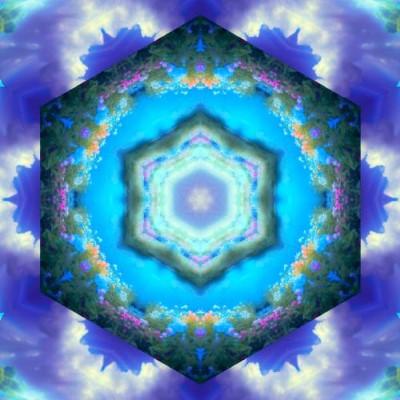
A background made from your photo
Kaleidoscope wallpaper generator
Create an abstract background for your phone or desktop. Turn a photo into a mirrored pattern, choose the canvas dimensions and adjust the colors to suit your screen.
Create your own wallpaperFree online tool. Download JPG, PNG or WebP. No account required.
Photos selected from your device are processed in your browser. Save the result when you are ready to use it as a background.
Choose a wallpaper size
Use your display's pixel dimensions when you know them. These sizes are useful starting points, but phones and monitors have different aspect ratios. Enter the width and height manually in Canvas Size and press Set.
| Layout | Width × height | Aspect ratio | Suggested use |
|---|---|---|---|
| Phone portrait | 1080 × 1920 px | 9:16 | A starting point for a vertical background |
| Tall phone portrait | 1080 × 2400 px | 9:20 | A taller screen layout |
| Full HD desktop | 1920 × 1080 px | 16:9 | A Full HD monitor or laptop |
| QHD desktop | 2560 × 1440 px | 16:9 | A QHD monitor |
| 4K UHD desktop | 3840 × 2160 px | 16:9 | A 4K UHD monitor |
The maximum canvas size is 4096 × 2160 pixels in landscape or 2160 × 4096 pixels in portrait. These formats have a different aspect ratio from 3840 × 2160 UHD. Square canvases are limited to 3000 × 3000 pixels; the tool does not support arbitrary 4K squares.
How to make a kaleidoscope background
Open the editor and add a photo
Use New 🖼️ and Add Image to select a file from your device. Flowers, clouds, water and textures give you different colors and edges to repeat. The generator may restore your previous session when you open it.
Set the final canvas dimensions
Enter a width and height from the table, or use your own display dimensions. Set the size before fine-tuning the design so you can see how the pattern fills the full background.
Choose a form and crop
Try a tiled form for a repeating background or the circle for a central radial design. Move the crop in the source-image preview, then adjust rotation, zoom and sectors. Keep important details away from edges that your device may crop.
Make room for icons and text
Use brightness, contrast and saturation to reduce distracting detail. Try a vignette to darken the edges. If the pattern has transparent areas, choose an opaque background color before export so it does not depend on your device's handling of transparency.
Export and set the wallpaper
Download the image with SAVE as JPG, PNG or WEBP. Use your device's wallpaper settings to select the saved file. Preview the crop with your usual icons or lock-screen clock, then adjust the design if needed.
Make the pattern work behind your apps
Use fewer competing details
A highly detailed crop can compete with labels and icons. Try a different crop or a lower sector count and compare the result at normal screen size.
Choose a quieter palette
Lower saturation for a less colorful background. Check both light and dark app icons against it. Darkening the design may help light labels, but it is not a guarantee of readability.
Check the actual crop
A wallpaper can be scaled or cropped by your device. Leave room around the pattern's focal point and test the saved image in the wallpaper preview before deciding on the final version.
JPG, PNG or WebP?
JPG is a practical starting point for a photo-based, opaque background. PNG preserves detail without lossy compression and supports transparency, but can make a larger file. WebP is another option when your device accepts it as a wallpaper. Compare the saved files if fine edges or text look different.
Exporting a small source photo onto a large canvas does not recover missing detail in the original. Choose a clear source image and inspect the downloaded result at full size, especially for 4K backgrounds.
Questions about kaleidoscope wallpapers
Can I make a 4K wallpaper for free?
Yes. Set a 3840 × 2160 pixel canvas for a 4K UHD desktop background, then download the image. Processing a large canvas uses more memory and may take longer, especially on a phone.
Will a 1080 × 1920 wallpaper fit every phone?
No. It is a 9:16 starting point. Check your phone's dimensions or use the wallpaper preview to see how it scales and crops the image. A taller device may need a different height.
Does the tool set the wallpaper automatically?
No. It generates an image file. Download it and select it through your device's background or wallpaper settings.
Can I use a mandala as the background?
Yes. Choose a circular form and adjust its crop and symmetry. See the photo to mandala guide for a fuller walkthrough. Check where the central pattern falls relative to your icons and clock.
Can I create a moving wallpaper?
The editor can export animated kaleidoscope GIFs. Whether an animation can be used as a wallpaper depends on your device and software. A GIF export is not a dedicated live-wallpaper package or a video file.
Do I need to upload my photo to a server?
Photos selected from your device are edited locally in your browser. Loading a photo by URL contacts the image's server, and sharing the result sends it to the service you choose. See the privacy policy for website data processing.
Create a background for your screen
Pick a photo, set your canvas dimensions and explore a few patterns before downloading your favorite.
Make a kaleidoscope wallpaperExplore the pattern gallery or read about the editor's controls.