Create with your own photos
Photo to mandala generator
Turn a photo into a repeating, radial pattern. Choose a circular form, move the image crop and change the symmetry to find a design you like.
Create a mandala from a photoFree to use. No account or installation required.
Photos selected from your device are processed in your browser. You choose whether to download or share the result.
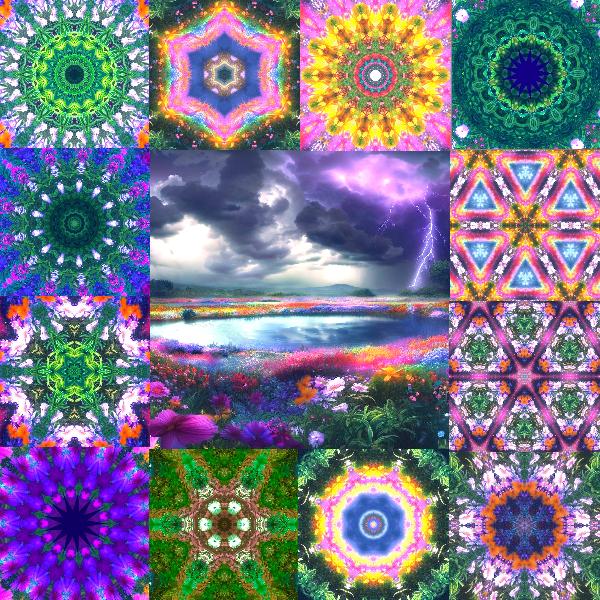
How to turn a photo into a mandala
The generator opens on the main page. It starts with a sample image, or your previous editing session if one is saved in this browser.
Add your photo
Open the image selector with New 🖼️, then choose Add Image to select a file from your device. You can also drag a photo into the editor or paste an image from the clipboard where your browser supports it.
Choose the circular form
In Forms and Designs, choose the circle. This gives the pattern a central focus. Try the other forms later to compare a radial design with a repeating tiled background.
Adjust the crop and symmetry
Move the crop in the source-image preview. Change SECTORs in Pattern Options; the control ranges from 3 to 32. Try 6, 8 or 12 as starting points, then adjust rotation and zoom. Small crop changes can produce a very different pattern.
Refine the colors
Use brightness, contrast and saturation to bring out the shapes. If the pattern is too busy, reduce saturation or choose a quieter part of the photo. A colored background can help when the design includes transparency.
Choose a size and download
Set the canvas dimensions before saving. A 1000 × 1000 pixel square is a useful starting point for a digital image. Download as PNG, JPG or WebP using the export controls. Use Add Design if you also want to keep the editable settings in this browser.
Photo mandala examples
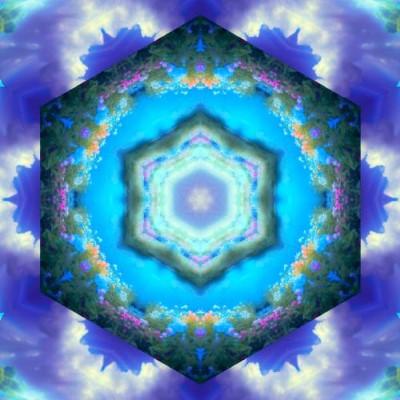
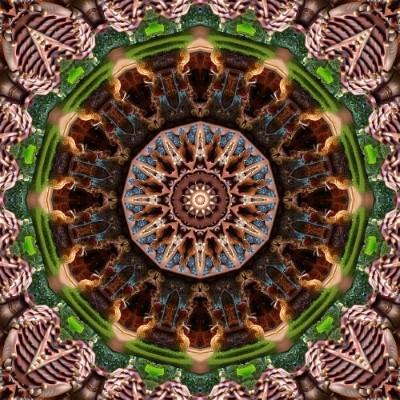
These existing Kaleidoscope24 designs show how different crops and forms change the arrangement. Use them as visual references; their exact editor settings are not included.
Which photos work well?
Flowers and leaves
Petals, leaf veins and contrasting edges give you details to repeat. Try moving the crop between the flower center and the edge of a petal.
Landscapes and textures
Clouds, water, fabric and stone can create broader bands of color. Include a boundary between light and dark areas to make the mirrored structure clearer.
Portraits and pets
Faces are mirrored along with everything else. Start with a crop around a small detail if repeating the whole face looks crowded. The tool does not automatically preserve facial features.
Questions about making mandalas from photos
Is this a drawing tool or a photo effect?
It is a photo effect. The generator mirrors and repeats a crop of an image to create mandala-style designs. It does not draw new line art or generate an image from a text prompt.
Can I use it for free without signing up?
Yes. Open the generator, choose a photo and download your result. There is no account required.
Which image formats can I use?
You can select JPG, PNG, WebP and GIF image files. The photo workflow creates a pattern from an image; selecting an animated GIF does not automatically preserve its animation.
Are my photos uploaded for editing?
Files selected from your device are read and edited in the browser. Loading a picture by URL contacts that image's server, and sharing an exported image sends it to the app or service you choose. The website also loads third-party advertising. See the privacy policy for website data processing.
Can I print the result or make an animated GIF?
You can print a downloaded image using your usual image or print software. PNG is useful for preserving fine detail; print quality depends on pixel dimensions and print size. The editor also has a GIF export workflow using several editing-history frames. It does not currently export PDFs or automatically turn photos into coloring-page outlines.
Is a photo mandala the same as a traditional mandala?
Here, “mandala” describes a decorative radial pattern. Traditional mandalas also have cultural and religious meanings that are not represented by applying a photo effect.
Try a new pattern with your own photo
Start with one image. Explore a few crops and sector counts, then save the result you prefer.
Start creatingAnimate your pattern with the GIF maker guide, or size it for your screen with the wallpaper guide. For more detail, read the editor features or help page.